When you open a webpage on your phone, what happens between the moment you tap the screen and the moment the page loads? There's an entire invisible infrastructure that makes it possible to communicate with a server that might be on another continent in milliseconds. That's a computer network.
Understanding networks isn't just for engineers. If you work in an office, run a business, or simply want to understand why your WiFi is slow, knowing the basics changes everything. Let's dive in.
What is a computer network?
A network is a group of connected devices that can share information. That's it. Your home probably already has one: your phone, laptop, smart TV, all connected to the same router. That's a local network (LAN, Local Area Network).
Types of networks:
- LAN (Local Area Network): your home or office network. Short range.
- WAN (Wide Area Network): connects local networks together. The internet is the world's largest WAN.
- WLAN (Wireless LAN): same as LAN but wireless. Your home WiFi.
IP addresses: every device's phone number
Every device on a network has an IP address. It's like a phone number: it uniquely identifies each device so information reaches the right destination.
Two types:
- IPv4: the classic format. Looks like this:
192.168.1.15. Four groups of numbers separated by dots, each between 0 and 255. - IPv6: the new format. Looks like this:
2001:0db8:85a3:0000:0000:8a2e:0370:7334. Much longer, but allows trillions of unique addresses (IPv4 is running out of numbers).
Public IP vs. Private IP
- Public IP: assigned by your internet provider (Cable & Wireless, Claro, Tigo in Panama). What the outside world sees. If you search "what is my IP" on Google, you see your public IP.
- Private IP: used by your router inside your home. Usually starts with
192.168.x.xor10.x.x.x. Only exists within your local network.
Your router has a public IP (to talk to the internet) and assigns private IPs to each device in your home (to talk to each other).
The router: the traffic director
The router is the device that connects your local network to the internet. It receives the signal from your provider and distributes it among your devices. It also translates between public and private IPs (this is called NAT, Network Address Translation).
Did you know you can access your router's configuration? Open a browser and type 192.168.1.1 or 192.168.0.1 (depends on the brand). It'll ask for username and password. If you never changed it, it's probably admin/admin. Change it. Seriously. It's a security risk.
From the router configuration you can:
- Change WiFi name and password.
- See which devices are connected.
- Set up parental controls.
- Open ports (advanced, but useful if you host a server).
WiFi: what everyone uses but few understand
WiFi is simply a way to connect devices without cables, using radio waves. It operates on two main bands:
- 2.4 GHz: longer range, lower speed. Better for browsing and simple tasks.
- 5 GHz: shorter range, higher speed. Better for streaming and heavy downloads.
If your router is dual-band (and it probably is), connect speed-needy devices (laptop, smart TV) to 5 GHz, and range-needy devices (phone far from router) to 2.4 GHz.
Why your WiFi might be slow
- Interference: thick walls, microwaves, and neighbors' routers interfere with the signal. Common in Panama apartments.
- Too many connected devices: every router has a limit. If you have 15 devices fighting for the same bandwidth, everything slows down.
- Distance: further from the router means weaker signal. A WiFi repeater can help.
- Old router: if your router is more than 5 years old, it probably doesn't support the speeds your provider offers.
Basic network troubleshooting
Before calling your internet provider, try this:
1. Restart the router and modem. Turn off, wait 30 seconds, turn on. Fixes 50% of problems.
2. Check if it's your device or the network. Is it just your phone without internet or all devices? If it's just one, the problem is your device. If all, it's the network.
3. Do a ping. Open the terminal (Command Prompt on Windows) and type: ping 8.8.8.8. If it responds, you have internet. Then try ping google.com. If the number works but the name doesn't, it's a DNS problem.
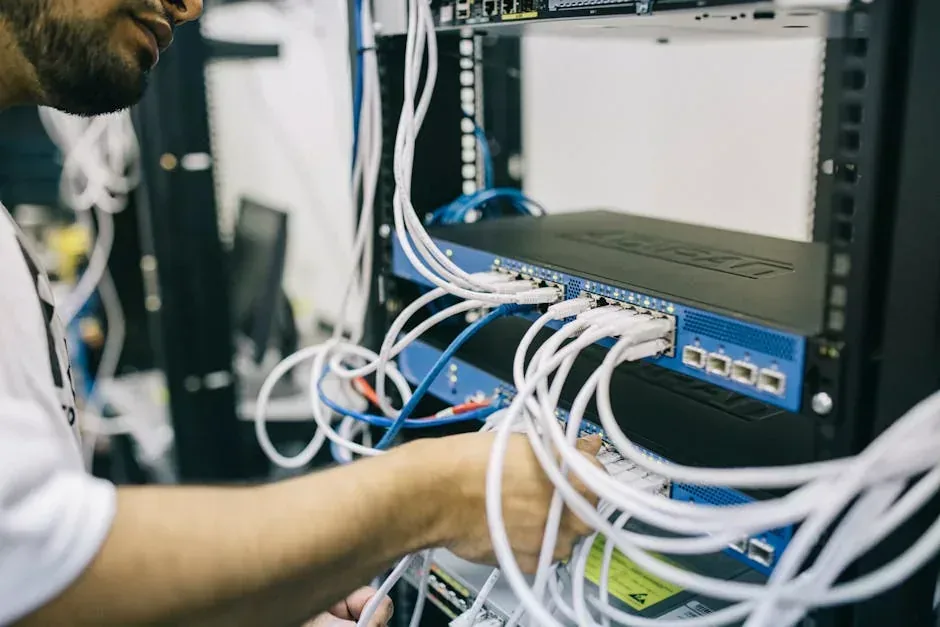
4. Check cables. If you use a wired connection (Ethernet), verify they're properly connected. A loose cable is the simplest and most ignored cause.
5. Change DNS. DNS is like the internet's phonebook: it converts names (google.com) to IPs. If your provider's are slow, switch to Google's (8.8.8.8 and 8.8.4.4) or Cloudflare's (1.1.1.1).
A career in networking
If this interests you, you can turn it into a career:
- CompTIA Network+: the entry-level certification for the networking world. Covers fundamentals and is globally recognized.
- Cisco CCNA: more advanced and specific to Cisco equipment. Well-regarded in the market.
- Network administrator: in Panama, salaries range from $1,000 to $3,000+ depending on experience and certifications.
- Level 2/3 technical support: solving network problems is a highly demanded skill.
Companies like Cable & Wireless, Claro, Digicel, and most medium-to-large businesses in Panama need people who understand networks.
How Crezendo helps
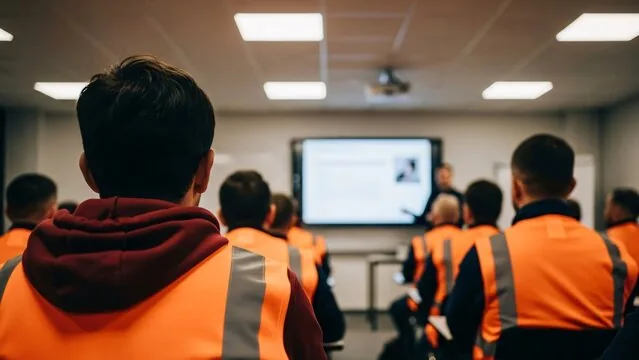
At Crezendo we offer computer networking fundamentals workshops. No prior technical experience needed. We cover:
- Basic network concepts, IPs, DNS, and protocols.
- Basic router and WiFi configuration.
- Troubleshooting common problems.
- Introduction to CompTIA Network+ and CCNA certifications.
Knowing networking is a skill that serves you in any job involving technology. And nowadays, almost all jobs do.
Interested in learning about computer networks? Contact us and find out about our upcoming workshops.