A laptop battery is one of the components that degrades the most over time. After two or three years of regular use, it is normal for autonomy to drop dramatically or for the laptop to only work when plugged into the charger. Replacing the battery can restore mobility and extend its useful life by several more years, avoiding an unnecessary expense on new equipment.
How to know if you really need a new battery
Before buying a replacement, confirm that the battery is the problem and not something else. These are the most common symptoms:
- The laptop shuts down immediately when the charger is unplugged.
- Windows or macOS shows a warning like "battery damaged" or "replace battery soon."
- The battery charges to 100 % but drains in less than 30 minutes.
- The back panel of the laptop swells or deforms slightly.
- The operating system does not detect the battery at all.
If your laptop shows any of these symptoms, replacement is the right solution.
Types of laptop batteries
There are two main configurations:
- Externally removable batteries: Released with latches or buttons without needing screwdrivers. Common in older business laptops.
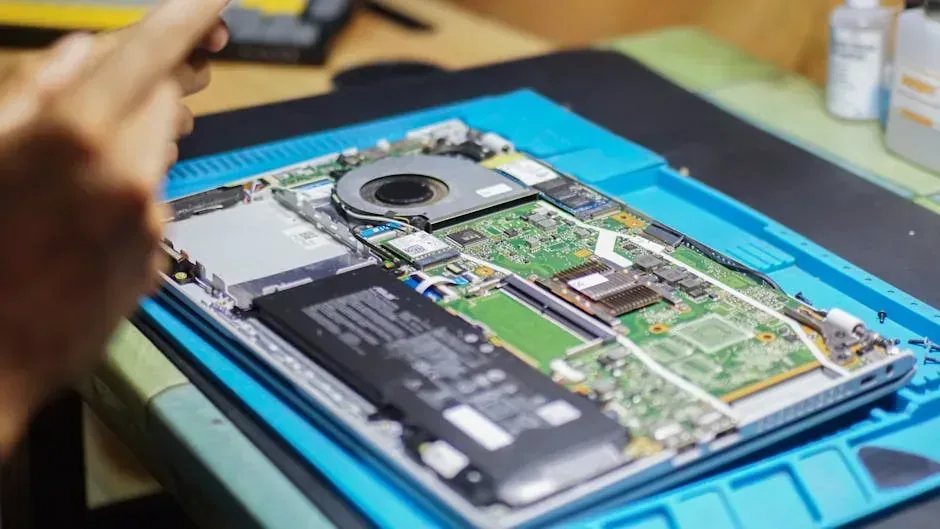
- Internal batteries: Secured with screws inside the chassis. Requires opening the back cover. This is the standard in modern and ultrathin laptops.
Identify which one you have before buying a replacement. The exact model of your laptop is printed on a label on the bottom or can be checked in the system settings.
Tools you need
For external batteries you need nothing. For internal batteries, prepare:
- Phillips screwdriver of the correct size, usually PH0 or PH1.
- Plastic opening tool or a guitar pick to avoid scratching the casing.
- Container to keep the screws.
- Anti-static wrist strap, or touch a metal surface before handling internal components.
Step-by-step procedure for internal batteries
1. Shut down and disconnect everything
Close all programs, shut down the laptop completely, and unplug the charger. Remove any connected peripherals.
2. Open the back cover
Place the laptop face down on a clean, flat surface. Remove all visible screws from the back cover. Some models have hidden screws under rubber feet or stickers, so check carefully. Use the opening tool to unclip the plastic latches holding the cover in place.
3. Locate the battery
The battery is the largest rectangular component you will see. It is usually at the top or center. It connects to the motherboard via a flat cable with a small connector.
4. Disconnect the battery connector
Carefully use your fingernails or plastic tweezers to disconnect the battery connector from the motherboard. Never pull the cable itself. Hold the connector by the base and pull gently in a straight line. If there are screws securing the battery to the chassis, remove them.
5. Install the new battery
Place the replacement battery in the same position. Secure it with screws if needed. Connect the flat cable to the motherboard until it clicks gently into place.
6. Close and test
Reattach the back cover, press until the clips snap into place, and reinstall the screws. Plug in the charger and turn on the laptop. The first charge may take longer than usual. Let it charge to 100 % before using it on battery power.
Calibration after replacement
For the operating system to measure remaining charge correctly, it is recommended to calibrate the new battery. The process is simple: charge to 100 %, leave the laptop plugged in for one more hour, unplug the charger, and use the laptop until it shuts down on its own due to low battery. Then charge back to 100 % without interruption.
Where to buy replacement batteries in Panama
You can find batteries at technology spare parts stores on Avenida Central, online marketplaces like Instagram Shopping or Mercado Libre Panama, or by importing from Amazon if you have a mailbox. Always verify that the battery model matches your laptop exactly. Generic batteries are cheaper but usually last less, and in extreme cases they can pose overheating risks.
When it is not worth replacing the battery
If the laptop is over seven years old, has a fourth-generation processor or older, or less than 4 GB of RAM, investing in a new battery will probably not reverse the overall obsolescence of the machine. In those cases, donating or recycling it is the best option.
A laptop with a new battery remains a useful tool for longer. However, if you replaced the battery and found that the machine no longer meets your needs, do not let it gather dust. At Crezendo we accept laptops, phones, game consoles, tablets, and peripherals in any condition. Equipment that can be recovered is repaired and given to students who need it for their education. Those beyond repair are dismantled responsibly to reuse components and prevent toxic materials from ending up in landfills. Donating your used or worn-battery device is a direct way to reduce e-waste and support access to education in Panama.